
Audio · March 18, 2026 · Updated July 17, 2026
Behringer X32 Routing and Configuration for Church Audio: A Complete Guide
Master Behringer X32 routing and configuration for your church. Nathan Robb at Crazy Amazing Designs covers buses, AES50, broadcast mixes, and more.
If you’re trying to wrap your head around Behringer X32 routing and configuration, you are in the right place. The X32 is one of the most capable digital consoles available at its price point — and I’d argue there’s no better value in church audio. But all that capability comes with a learning curve, and if you’ve ever stared at the routing matrix wondering where your signal even went, you know exactly what I mean.
At Crazy Amazing Designs, we’ve helped dozens of churches configure their X32 — from small two-hundred-seat sanctuaries to multi-campus churches with complex A/V systems — and X32 routing is hands-down one of the most common reasons people book a Zoom training session with us.
Why X32 Routing Trips People Up
The Behringer X32 is not a simple board. It’s a full digital console with 32 input channels, 16 mix buses, 6 matrix outputs, and a routing engine that is genuinely powerful but also genuinely confusing if you didn’t set it up yourself or didn’t get trained on it. (And if you’re on a Midas M32: everything in this guide applies to you too — the M32 runs the same engine and software on different hardware, which is why my videos cover them together.)
The biggest source of confusion? The X32 separates what you HEAR (the mix) from what you SEE (the channel strips). Most people are comfortable assigning channels to the main LR mix and calling it a day. But the moment you try to create a monitor mix for your IEM users, route a dedicated feed to your livestream encoder, or use your X32 Rack as a stage box for a separate front-of-house console, things get complicated fast.
The second biggest issue is that the X32 has multiple layers of routing: physical inputs and outputs, User In/Out routing, and the AES50 digital snake connections. Understanding how those three layers interact is the key to unlocking everything this console can do.
The Concept Everyone Misses: Your Inputs Are a Separate Layer
Here’s the mental model that makes everything else click — and it’s the thing almost nobody explains to new X32 users.
On a digital console, nothing is wired until YOU route it. The jack where you plug in a mic is a completely separate layer from the fader channel that controls it.
On an old analog mixer, every strip was hardwired: the channel 1 XLR fed the channel 1 fader, period. On the X32, XLR input 1 isn’t connected to ANY fader until the routing says so. Your possible sources include the local XLRs on the back, the aux inputs, stage boxes over AES50, and expansion card inputs — and on the other side sit the 32 console fader channels, waiting to be fed.
Three facts about how that connection gets made:
- Routing is set in banks of 8. On the Routing → Inputs tab, you assign channels 1–8, 9–16, 17–24, and 25–32 as blocks — each bank points at a source, and the whole block moves together.
- A brand-new X32 defaults to Local 1–32 → channels 1–32. Fresh from the box, the rear XLRs feed the faders one-to-one. That default is exactly why stage boxes surprise people (more below).
- When you need one specific input on one specific fader, that’s USER routing — a layer between the inputs and the faders. Set the Inputs tab to User 1–32, then assign any source to any slot on the User tab. It’s the proper answer to per-channel flexibility, and it’s covered in depth in USER Input and Output Routing on the Behringer X32.
The Solution: Understanding X32 Routing from the Ground Up
Inputs: Where Your Signal Comes From
Your X32 can accept audio from several places: the 32 XLR inputs on the rear panel, two AES50 ports (each carrying 48 channels of digital audio), the card slot (for USB recording or DAW interfacing), and the USB stick for playback.
The ROUTING page on the console (accessed via the SETUP button → ROUTING tab) is where you define what physical source feeds each channel. Most churches run their microphones and instruments directly into the rear XLR inputs, which is the simplest setup. But once you add a stage box or an X32 Rack as an expander, you’re pulling inputs over AES50 — and this is where people get lost.
The AES50 rules that keep you out of trouble:
- Use SHIELDED Ethernet cable. The cable looks like network cable, but AES50 is not a networking protocol — it’s a point-to-point connection, and unshielded cable causes real problems.
- Console → stage box goes to the box’s A port. A is the input.
- Daisy-chaining? First box’s B port → second box’s A port.
- Match your sample rates. The console and every stage box need to agree — 48 kHz is the standard. A mismatched box is a classic “why does it sound wrong / why is it silent” cause; here’s the sample-rate gotcha in 60 seconds.
I cover the full AES50 setup in detail in my YouTube video Using AES50 to Send and Receive Audio on the X32 with Stage Boxes. Short version: your AES50 connections carry audio in both directions, so you can send console outputs BACK to the stage for in-ear monitor feeds while simultaneously receiving all your microphone inputs over the same cable.
The #1 No-Sound Mistake (and the 30-Second Fix)
If your band is on stage, everything is plugged in, and NO audio is coming into the console — before you blame the board, check this: your signal is probably arriving over AES50, but your console inputs are still set to Local.
Remember the fresh-console default: Local XLR 1–32 feeding the faders. Plug your whole stage into a stage box, and the console is still listening to its own rear panel — which now has nothing plugged into it. Nothing is broken; one routing assignment is wrong. Point the banks on Routing → Inputs at AES50 A instead of Local, and audio appears.
Mixed setups are where it gets genuinely confusing — say a 16-input stage box on AES50 A feeding channels 17–32 while local XLRs feed 1–16. Any time you mix sources, you have to track which bank points where; it’s just blocks of 8.
When there’s still no input audio, work this checklist in order:
- Where does the signal physically enter? Back of the console, or a stage box?
- Routing → Inputs: does each bank point at that source?
- On the Inputs tab, look for the stage-box graphic and the AES50 A/B indicator at the top of the screen — if they’re missing, the stage box may not even be powered on.
- Seeing input meters but hearing nothing? Check the main mute and the output fader.
- Have documentation? Confirm the routing against your patch sheet.
Outputs: Getting Audio Where It Needs to Go
This is where things get really powerful. The X32 has:
- Main LR and Mono outputs — your primary house PA mix
- 16 Mix Buses — used for monitors, effects returns, and dedicated submixes
- 6 Matrix Outputs — great for delay speakers, broadcast feeds, or rooms with separate PA systems
- User Outputs — a configurable routing layer where you can assign nearly any signal to any physical output
For church livestreaming, I ALWAYS recommend building a dedicated broadcast mix on a Bus rather than feeding your main LR to the stream. Your house mix has the room baked into it — your online audience hears mud. A Bus-based broadcast mix lets you dial down the reverb, tighten up the low end, and make it specifically optimized for earbuds and laptop speakers.
Mix Buses: Your Secret Weapon
The 16 Mix Buses are the most underutilized feature of the X32 in church environments. Here’s how a typical Crazy Amazing Designs church setup uses them:
- Bus 1-6: Individual IEM mixes for worship team members (drummer, bassist, keys, vocalists, pastor)
- Bus 7-8: FOH effects (reverb return)
- Bus 9-10: Broadcast/livestream mix
- Bus 11-12: Recording mix (if going to a DAW or USB)
- Bus 13-16: Available for overflow, additional rooms, or campus feeds
Each Mix Bus is independent. You can send each channel at its own level and pan to each bus individually. This is how professional engineers build mixes — and the X32 gives your church this capability at a fraction of what it used to cost.
Controlling the X32 Remotely
One question I get constantly: “What app should I use to control my X32 from a tablet or phone?” I made a whole video on this — What App Should You Use to Control Your X32 Console? — because there are actually several options and they each have tradeoffs.
The two main ones are Behringer’s own X32-MIX app and X32-EDIT (the free desktop software). For on-the-floor mixing during worship or dialing in monitors from the stage, X32-MIX on an iPad is incredibly powerful. For deep routing and system configuration, X32-EDIT on a laptop is the way to go.
I went deep on X32-EDIT specifically in two videos: Overview of X32-EDIT to Control the X32 from a Computer and In Depth Routing Training with X32-EDIT. If you’re doing serious routing work on the X32, you want to do it in X32-EDIT — the larger screen and mouse interface make the routing matrix FAR easier to navigate than the console’s own screen.
USB Audio: Multitrack Recording — and Your Livestream Audio Feed
The X32’s USB card makes the console a full audio interface for your computer, in both directions — and a TON of churches don’t even know they have this. Audio FROM the X32 can travel over one USB cable into the computer — which is exactly how you get your livestream audio into ProPresenter or your streaming software without buying a separate interface: build your broadcast mix on a bus, send it over USB, and select the X32 as the audio input on the computer. Audio from the computer comes back the same way for playback.
The same connection records up to 32 tracks simultaneously — rehearsal capture, virtual sound check, podcast-quality service audio. I cover the whole send-and-receive setup in MultiTrack Recording & Playback with the Behringer X32.
Stuck on Something Specific? Start With the Right Video
X32 routing questions usually arrive as one very specific pain. Here’s the fast lane — find your problem, watch that video:
- “My outputs make no sense — what’s internal vs external routing?” → How to Route Audio on the X32/M32: Internal vs External Outputs Training
- “What is the OUT 1–16 page actually doing?” → What the X32 OUT 1-16 Page Actually Does
- “I don’t understand USER routing.” → USER Input and Output Routing on the Behringer X32
- “My stage box / AES50 setup isn’t working.” → Using AES50 to Send and Receive Audio on the X32 with Stage Boxes
- “Can my X32 Rack feed monitors AND act as a stage box?” → Using the X32 Rack as an IEM Mixer and Stage Box for FOH
- “Which app do I use to control this thing?” → What App Should You Use to Control Your X32 Console?
- “How do I record the service in multitrack?” → MultiTrack Recording & Playback with the Behringer X32
- “What does a complete portable X32 rig look like?” → Our X32 Mobile Sound System, Configured for a Retreat
Or — real talk — you can skip most of the homework: ShowBuilder builds the routing for you, and you learn the why at your own pace while your system just works on Sunday. Which brings me to…
Let ShowBuilder Build Your Routing for You
Everything above is worth understanding — and it’s also a lot of places for one wrong assignment to hide. That’s exactly why we built ShowBuilder: you define your gear once, and it writes the entire show file FOR you — routing, patch, channel names, colors, monitors — ready to load into your X32 or M32 and mix.
Here’s the whole flow, step by step:
Scroll the steps →
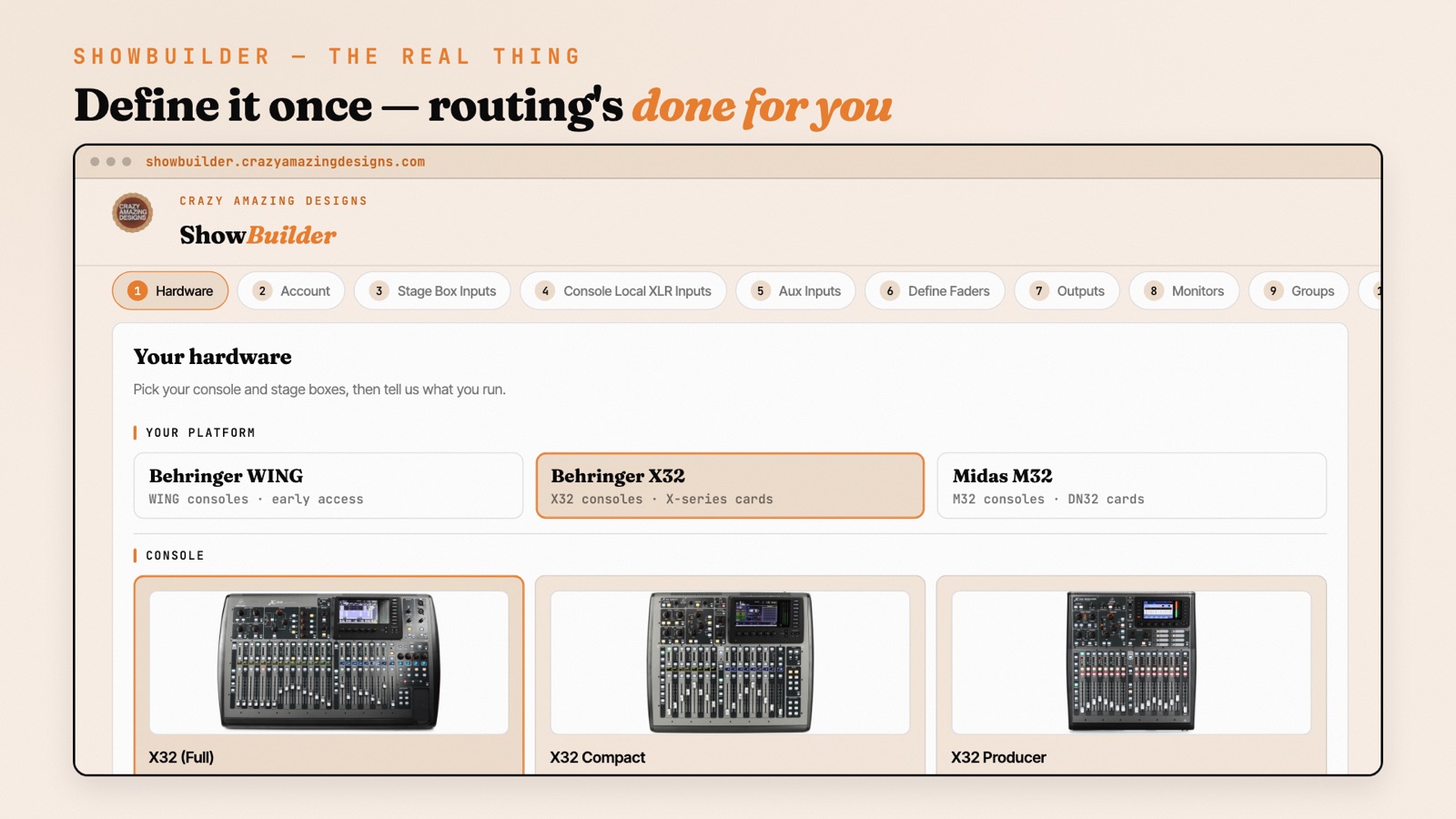
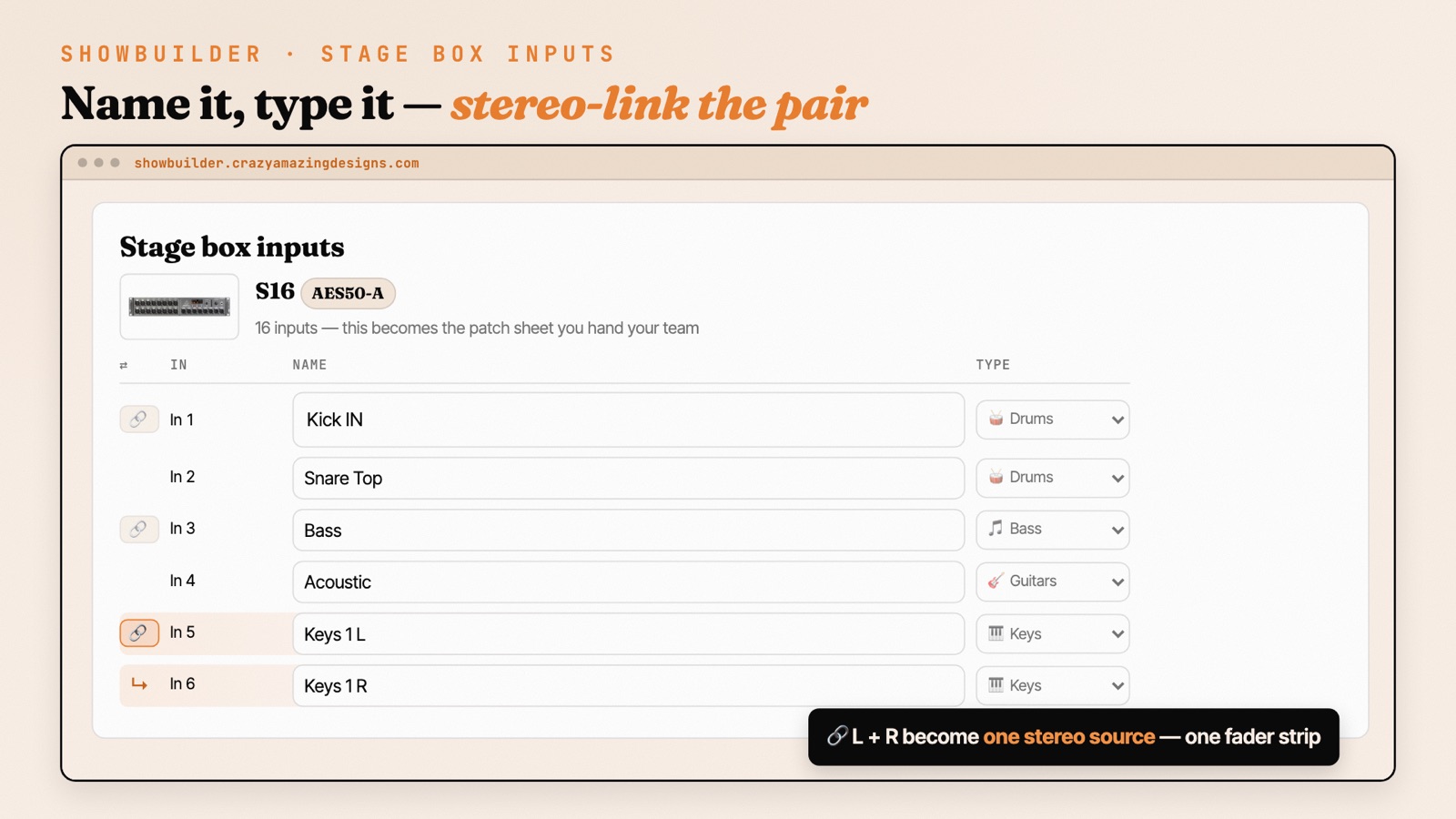
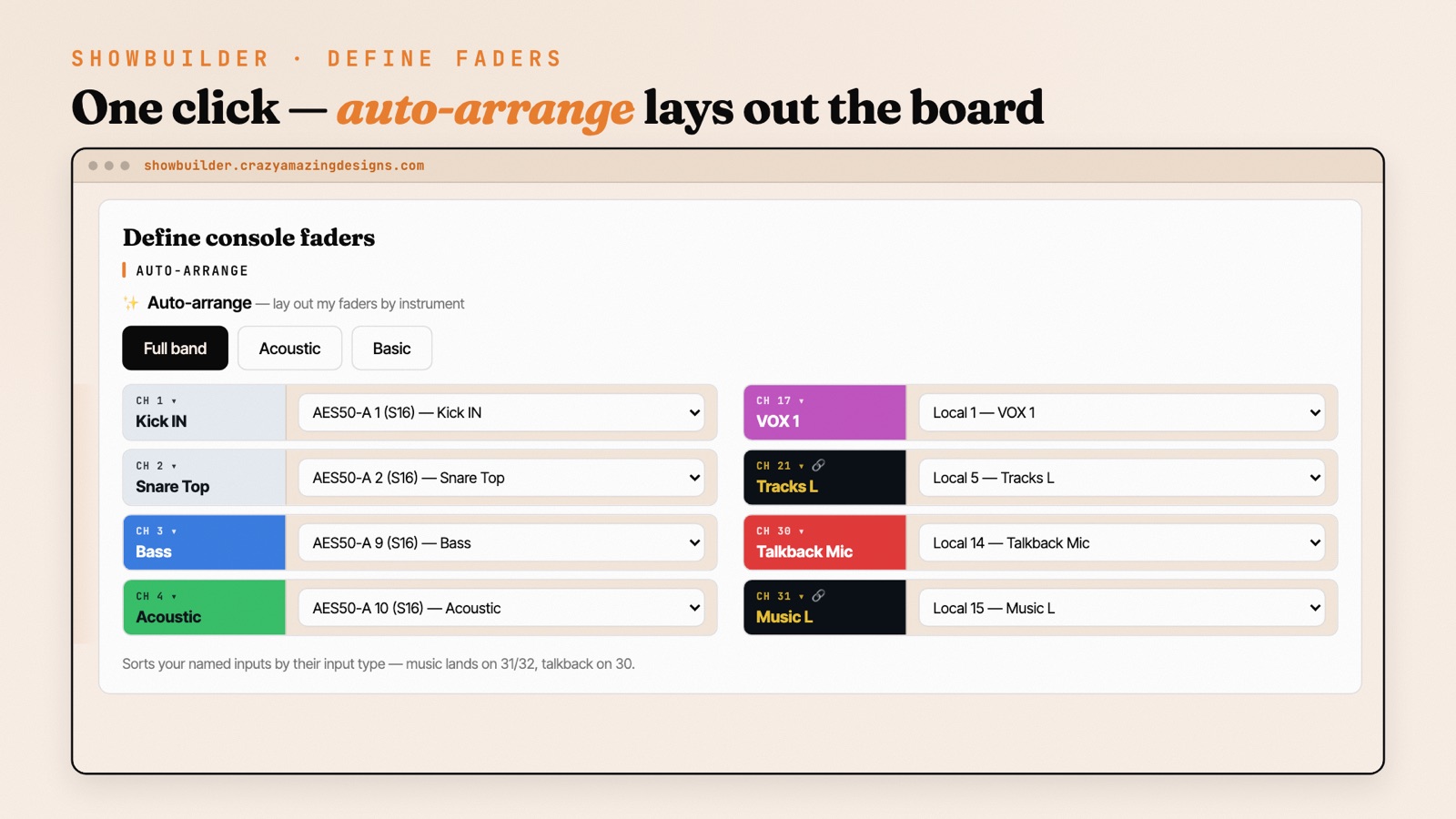
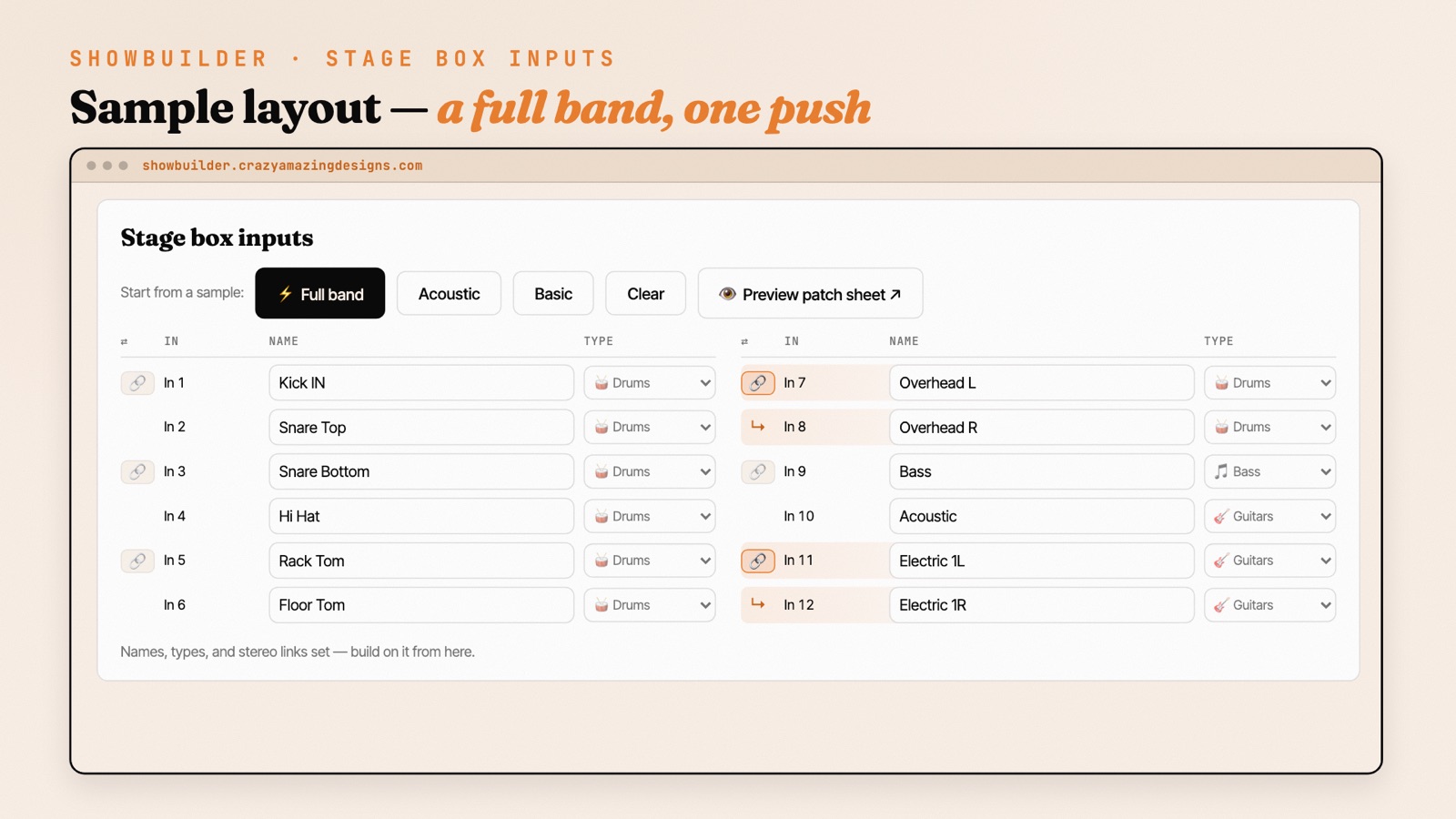
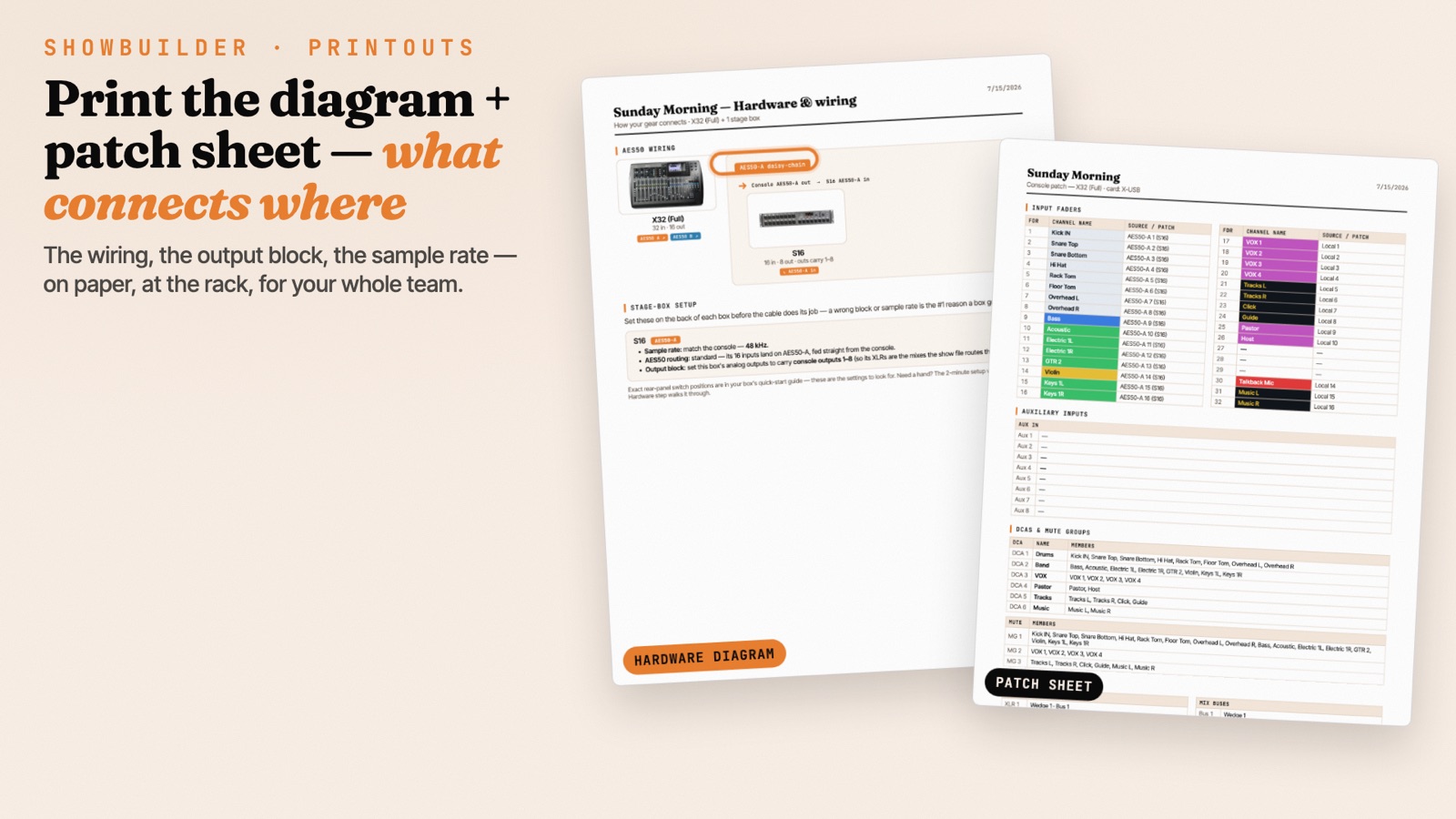
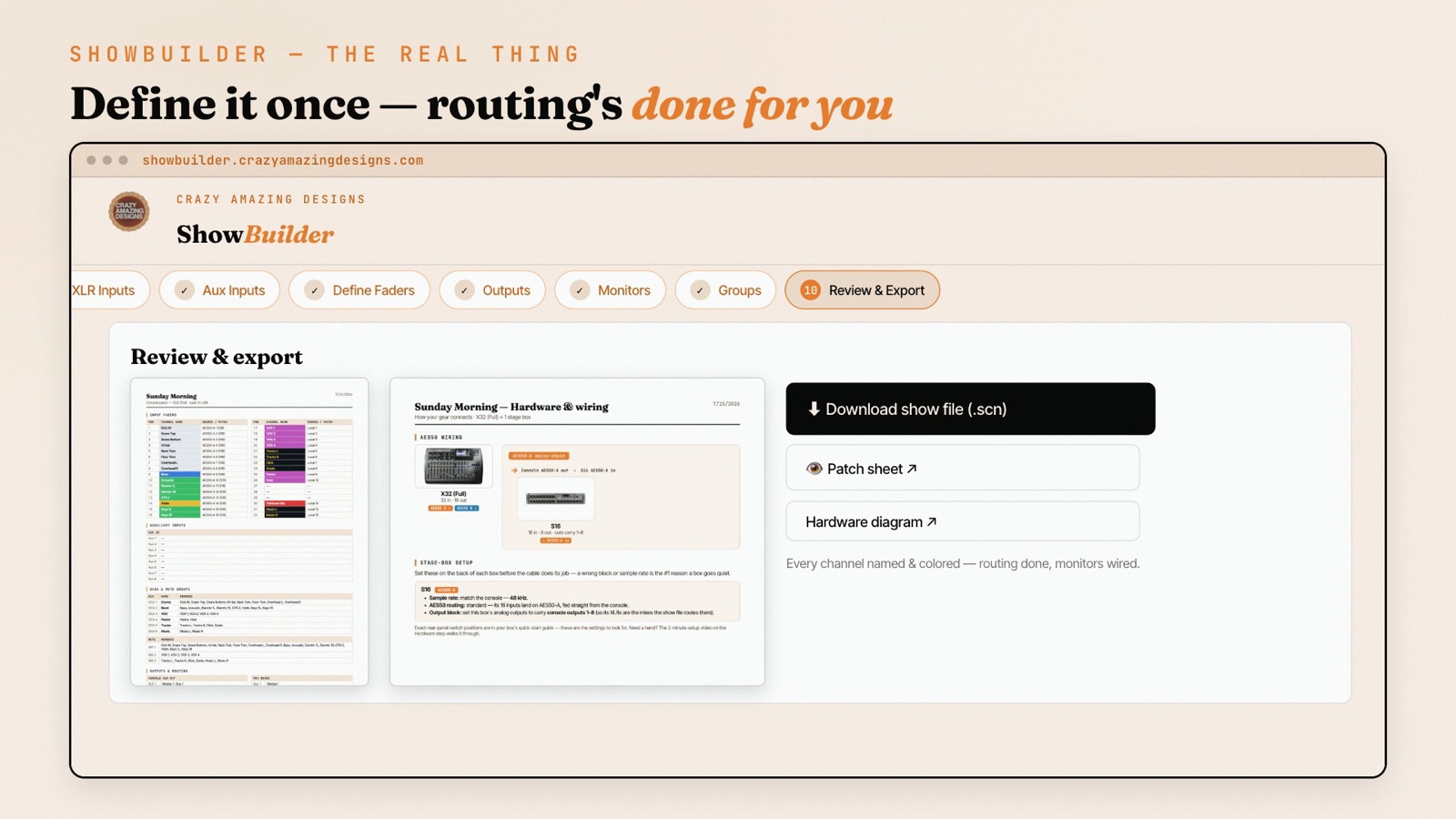
A few things that make it genuinely useful week to week: subscribe once and come back anytime — your show file stays fully editable, so as your rig grows you keep building on it instead of starting over. And because the routing lives in a printable diagram and patch sheet, the next volunteer can see exactly how the system is wired without reverse-engineering the console.
I walk through the whole thing in Custom X32 & M32 Show Files with ShowBuilder if you want to see it in action before you try it.
Where It Gets Complicated
Here’s the honest truth about X32 routing: the console can do almost anything you need it to do, but the path to “anything” runs through the routing matrix — and that matrix has a LOT of paths.
If you inherited a console that someone else set up, or if your console has been accumulating patches and workarounds over years of use, the routing can get genuinely messy. I’ve seen Show Files where the bus assignments made no sense, where channels were double-routed, where the User Out routing was completely wrong — and the person mixing on it had just learned to work around the weirdness without knowing why things were the way they were.
Every church setup is also different. Some run AES50 stage boxes. Some use the X32 Rack as an IEM mixer and stage box fed from a separate FOH console. Some need two consoles merged into one sound system with a house mixer. Some are integrating with a Dante network, or piping audio into an ATEM Mini for video production. Each of these configurations adds complexity that a one-size-fits-all guide can’t fully address.
Get Your X32 Dialed In — Without Spending Months Figuring It Out
If you want a head start, my X32 Show File & Routing Master File Package gives you a pre-configured Show File with channel strips, EQ, gates, compression, and bus routing already set up for a typical church environment — and if you want that same result built around YOUR exact hardware, that’s what ShowBuilder does.
But if you’re dealing with a specific setup issue — an IEM mix that doesn’t work right, a livestream that sounds bad, a stage box that’s not routing correctly — that’s exactly what I do at Crazy Amazing Designs through single-session Zoom training. We get on a call, you share your screen, I walk through your exact routing with you, and we fix it. Most issues I can solve in a single session.
Book a single Zoom session at CrazyAmazingDesigns.com/training
Check out more X32 training videos on my YouTube channel: Youtube.com/@CrazyAmazingDesigns
Related
Filed under: Behringer X32 · Midas M32 · Church Audio · Audio Routing · Church Tech Training · X32 Configuration · AES50 · X32 No Sound · ShowBuilder