
Audio · May 26, 2026
Using the X32 Rack as an IEM Mixer and Stage Box for FOH
How to run a Behringer X32 Rack as a dedicated in-ear monitor mixer on stage while it also feeds and receives from your front-of-house X32 over AES50 — routing, clock, and gain sharing.
The Behringer X32 Rack is the most misunderstood device in the whole X32 lineup. People assume it’s a digital stage box — a dumb box of inputs. It isn’t. It’s a complete X32 mixing console that just happens to have no faders. And that opens up my favorite setup in church audio: a dedicated in-ear monitor mixer that lives on stage with the band, while it also sends and receives every channel to your front-of-house X32 over a single Ethernet cable.
This is the third piece of the X32 routing story — after local inputs and outputs, and after your first AES50 stage box. Here we add a rack that does double duty: standalone monitor mixer and stage box for FOH.
Why a Dedicated Monitor Mixer on Stage?
Here’s the problem with mixing in-ears from the front-of-house console using the app. To adjust their own mix, a band member has to select “sends on faders,” then their personal mix bus. It is incredibly easy to forget that a bus is selected and start moving faders — and if no bus is actually selected, they’re now adjusting the main room mix. That’s how a singer quietly makes their own vocal louder in the house without anyone realizing why the mix drifted all service.
I’ve done it myself. But it never mattered, because I was on an X32 Rack that’s separate from the front-of-house console. Both mixers share the same input signals, but the rack’s main Left/Right doesn’t go anywhere — so a band member’s app mistake can’t touch the house mix. That isolation is the entire reason to run a second box.
Most churches don’t have a dedicated monitor engineer standing at a full-size console on stage, and you don’t need one. An X32 Rack is the right-sized answer. And even if you don’t have an X32 at FOH yet, a rack is a great mobile mixer or a first console — run it over Wi-Fi from an iPad now, and add a front-of-house console later.
The Hardware
In this setup, front of house is an X32 Compact. On stage lives a rack containing the X32 Rack and an S16 stage box, plus an SD8 stage box near the drum cage. A quick map of the wiring:
- Wireless mic receivers and in-ear transmitters connect to the back of the X32 Rack to keep the rack tidy.
- I add a small front panel that extends four XLR inputs and four XLR outputs from the rack to the front of the case — clean front, full access to the extra ports.
- A patch sheet assigns every input to a channel, so the band knows where to plug in and both consoles get laid out the same way.
Before routing, load the same starting show file on both mixers so their layouts mirror each other — same channels, names, DCAs, EQ, and gates. Because the band is mixing on the rack, both boards need to be organized identically. (This is exactly what my X32 Show File & Routing Master File Package gives you: a proven layout you drop onto both consoles to get a head start.)
The Routing, In Four Moves
AES50 carries audio in both directions on one cable, which is what makes this whole thing possible. Keep two labels straight and the rest follows: AES50-B connects the rack to the stage boxes, and AES50-A connects the rack to front of house.
1. The Rack Receives Inputs From the Stage Boxes (AES50-B)
On the rack’s Routing → Inputs page, pull your channels in over AES50-B. The stage box connected first in the chain occupies channels 1–8 and 9–16; the box connected second occupies 17–24. Set the input blocks to match, and every microphone and instrument on stage is now arriving at the rack.
The quick way is to point the blocks straight at AES50-B. The flexible way — the one I use — is to set the blocks to User In and then map each input individually on the User tab. That extra control matters when you’re also bringing in a Dante card and want, say, click and cues on specific channels.
2. The Rack Sends Its Channels to FOH (AES50-A)
Now configure the rack to pass everything along to front of house over AES50-A. On the AES50-A output tab, choose which inputs get pushed out — for example, the rack’s inputs 17–24 go out as AES50-A 1–8, and B1–8 go out as AES50-A 9–16. The rack is grabbing what it received from the stage boxes and forwarding it to FOH on the same cable that carries monitors back.
3. The Rack Sends Monitor Mixes Back to the Stage Boxes (AES50-B Out)
On the AES50-B output tab, assign the rack’s mix bus outputs to the stage boxes’ XLR outputs — outputs 1–8 to one box, 9–16 to the other. Now your in-ear and wedge feeds physically appear at the stage boxes right where the band is standing, instead of running all the way from FOH.
4. Front of House Receives From the Rack (AES50-A)
Finally, at the FOH console, set your inputs to User In and map them from AES50-A on the User tab. One thing to keep straight: because the rack put stage-box channel 17 onto its own input 1, FOH input 1 is really that stage-box channel. It’s a layer of indirection worth writing on your patch sheet. You can also pull card inputs here — for instance, a Dante click on card input 10.
Clock and Gain: The Two Settings That Trip People
Set One Clock Source
The moment you wire two X32s together, you’ll likely see a red mark on the A in the AES50 indicator. That’s a clock conflict. Both consoles ship set to 48 kHz Internal — and two devices on one AES50 link cannot both be the internal clock.
The fix: pick one board to be the master. Make front of house the primary clock, then on the rack go to Setup and give up clock control by setting its source to AES50-A. The connection blinks, reconnects a couple seconds later, the red mark clears, and audio passes. (Sample rates must match too — keep both at 48 kHz.)
Share Preamp Gain (HA Remote)
You want to control the stage box and rack input gains from front of house, not walk to the stage every time. Go to Setup → Preamps on both consoles. FOH will show HA remote active, Port A — it wants to be the controller. On the rack, select HA Port A to hand preamp control over. Now FOH controls the gains and phantom power on the stage boxes and rack: flip 48V on a channel from FOH and you’ll see the LED light up on stage, and turning the gain up gets audibly louder.
Squeezing Out the Extra Outputs
The two stage boxes are already outputting all 16 mix buses, but the rack still has its own 8 XLR outputs sitting there. Put them to work. On the rack’s XLR tab, set the outputs to user out 1–4 and 5–8; then on the user out tab, send whatever you want to each — outs 1 and 2 to a stereo IEM transmitter, outs 3 and 4 to another. The four ports on my front panel (user outs 5–8) can be set to anything on the source list. It makes the rack dramatically cleaner: transmitters plug straight into the back, no cable run to FOH.
Networking, In One Line
A small Wi-Fi router lives in the road case with an Ethernet cable to the X32 Rack. When the band connects to that Wi-Fi, each member controls their own mix bus from the app — without ever being connected to the front-of-house console. (The full networking setup is its own topic.)
Two Consoles, Twice the Places to Slip
Read back through those four routing moves and you’ll notice the catch: this setup is powerful precisely because there are so many moving pieces. Two consoles, two stage boxes, AES50 running both directions, a clock hand-off, shared preamps, and two mirrored layouts that have to match. Get one AES50 tab pointed the wrong way and you’ll spend the pre-service scramble hunting for silence with no error to guide you.
This is exactly the kind of multi-box system ShowBuilder was built for. You tell it your consoles, your stage boxes, and your band, and it writes the whole thing — the AES50 routing, the mirrored layouts, the monitor sends, the channel names and colors — into show files you load and mix. Here’s the flow:
Scroll the steps →
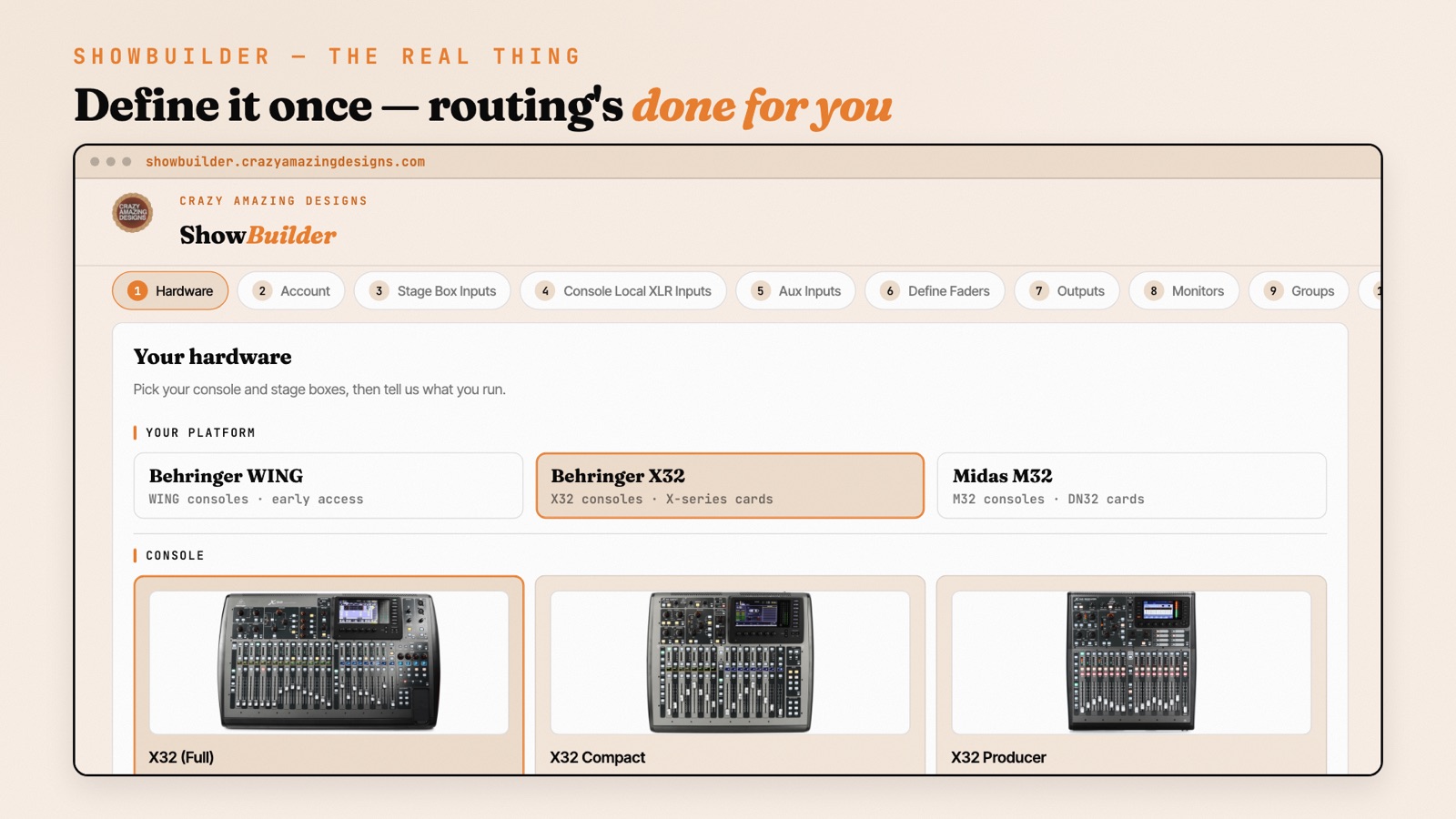
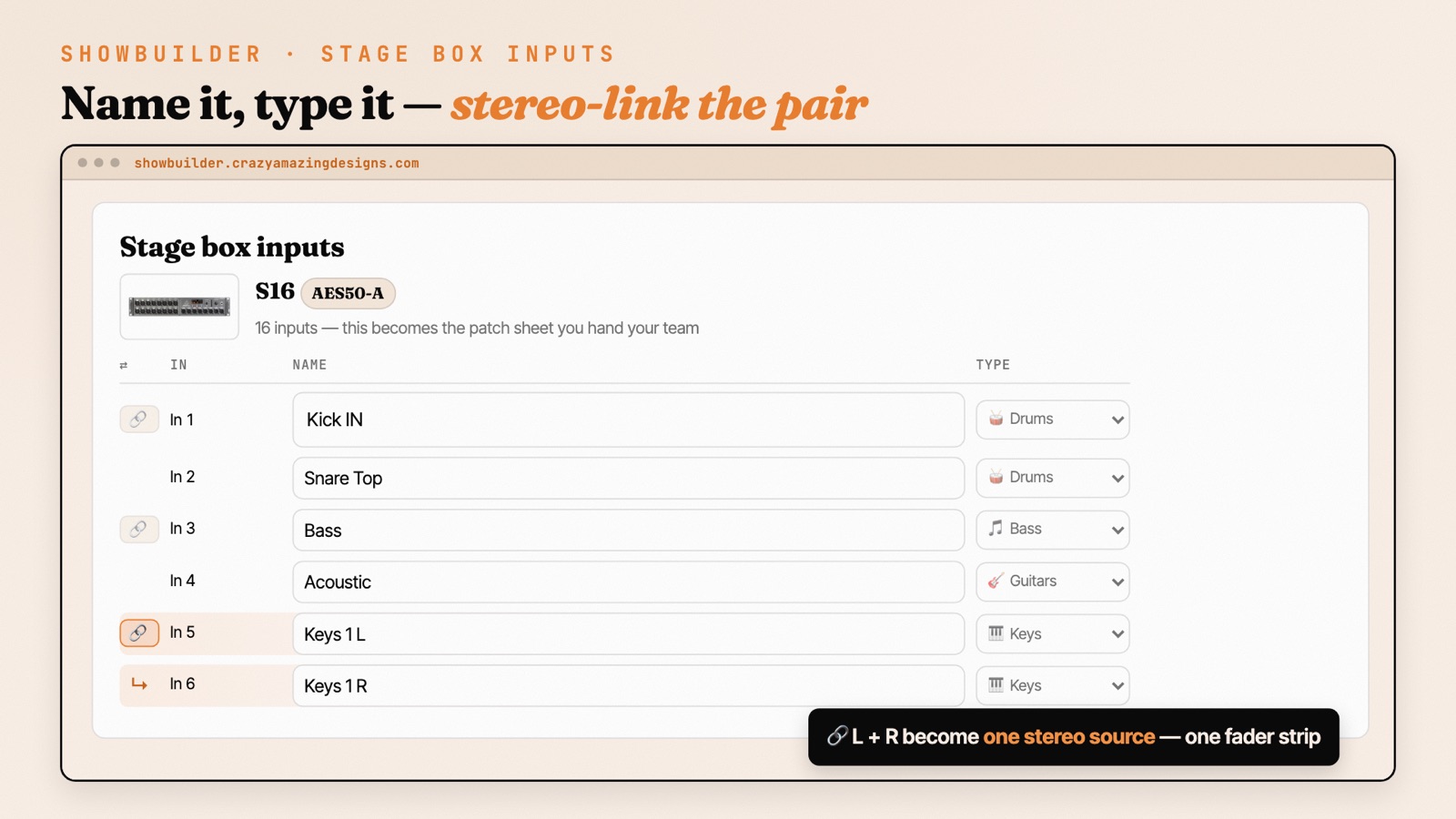
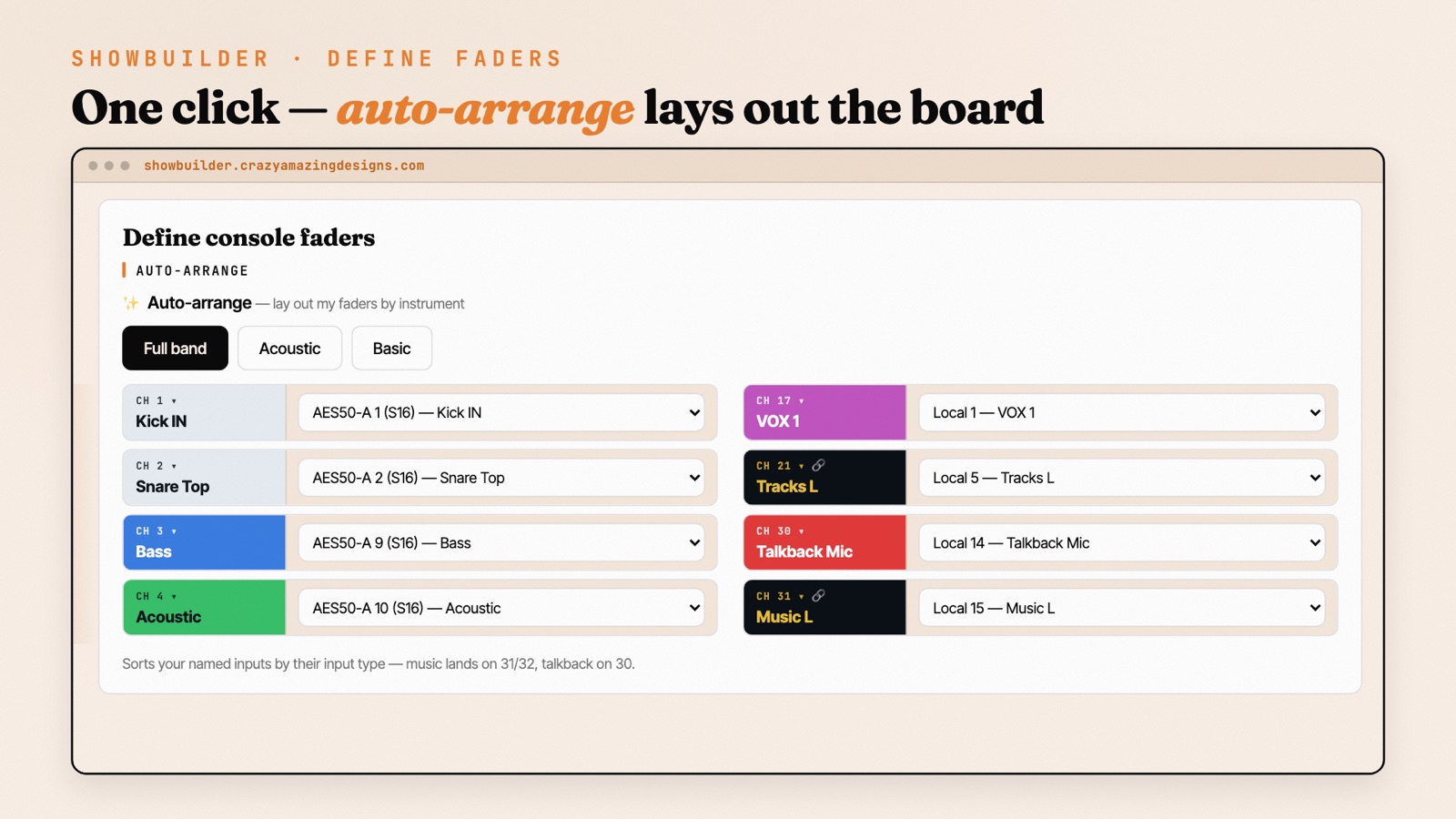
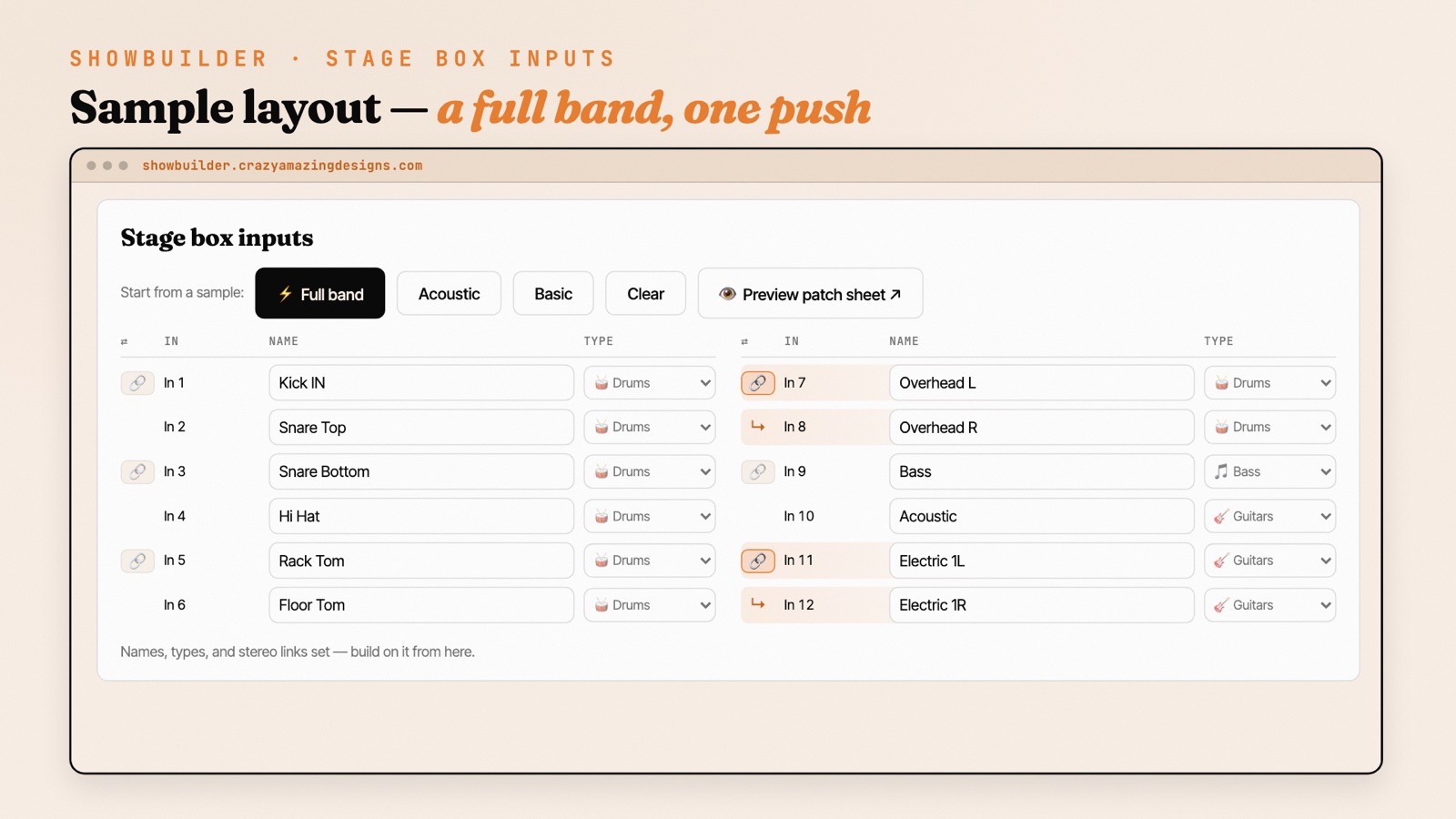
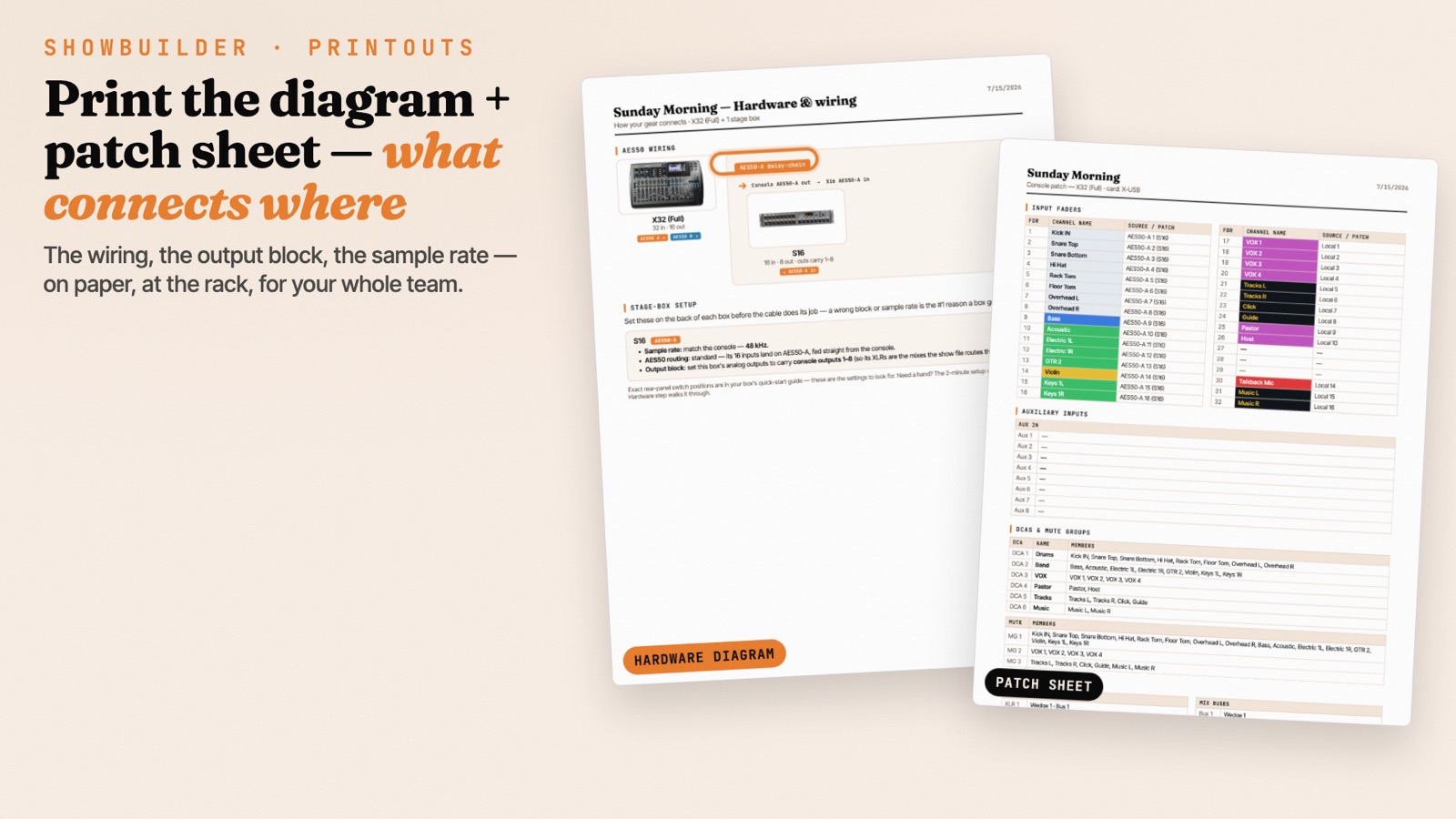
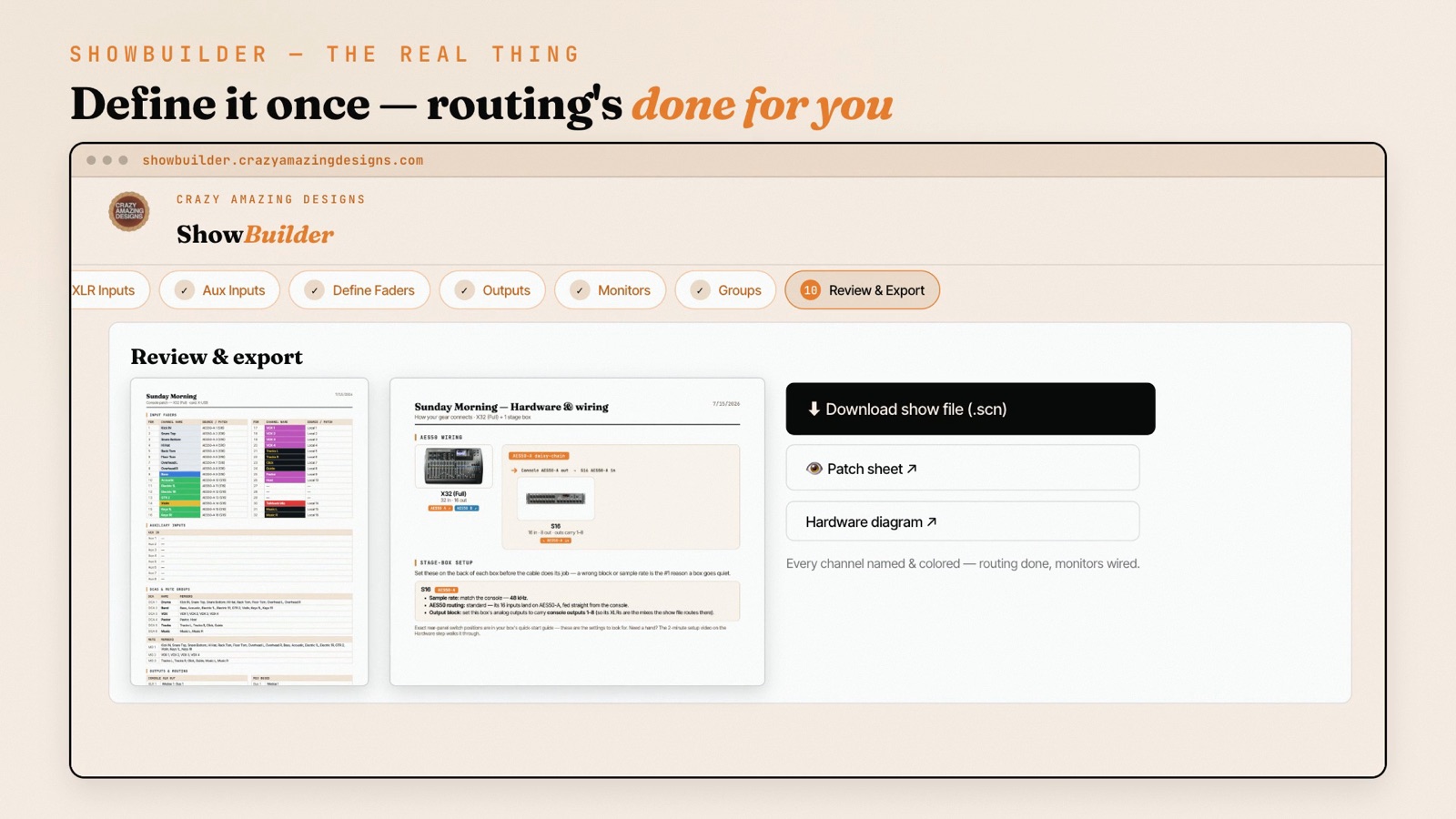
Because a monitor rig with a patch sheet is exactly the kind of thing your next volunteer inherits, having it all printed — not living only in one person’s head — is worth a lot when the drummer changes or you add a stage box next year.
Two consoles, one Ethernet cable, no audio?
Book a session and we'll get monitors flowing to the stage.
Share your screen and we'll set the AES50 routing on both boards, sort out the clock and gain sharing, and get your in-ears working — on your exact hardware. Wiring two X32s together is one of the setups I walk churches through most, and it usually fits in a single 45-minute session.
Book a Zoom session →Watch the Full Setup
The complete walkthrough — hardware, both consoles’ routing, the clock hand-off, and gain sharing — is here:
Keep Going
This setup builds on the fundamentals. If any of the routing above moved fast, back up a step:
- The big-picture map: our complete guide to X32 routing and configuration for church audio.
- The input/output layer this all runs on: X32 USER input & output routing.
- Do the routing on a laptop instead of the little screen: X32-EDIT & M32-EDIT: control your X32 from a computer.
- Going the other direction and merging boards? Merging two mixers into one system.
The consoles and stage boxes I run are on our recommended gear page. Want the routing built for your exact rig instead of by hand? That’s what ShowBuilder does.
More X32 training is on my YouTube channel: Youtube.com/@CrazyAmazingDesigns.
Related
Filed under: Behringer X32 · X32 Rack · IEM Mixer · AES50 · Stage Box · Church Audio · In-Ear Monitors · ShowBuilder